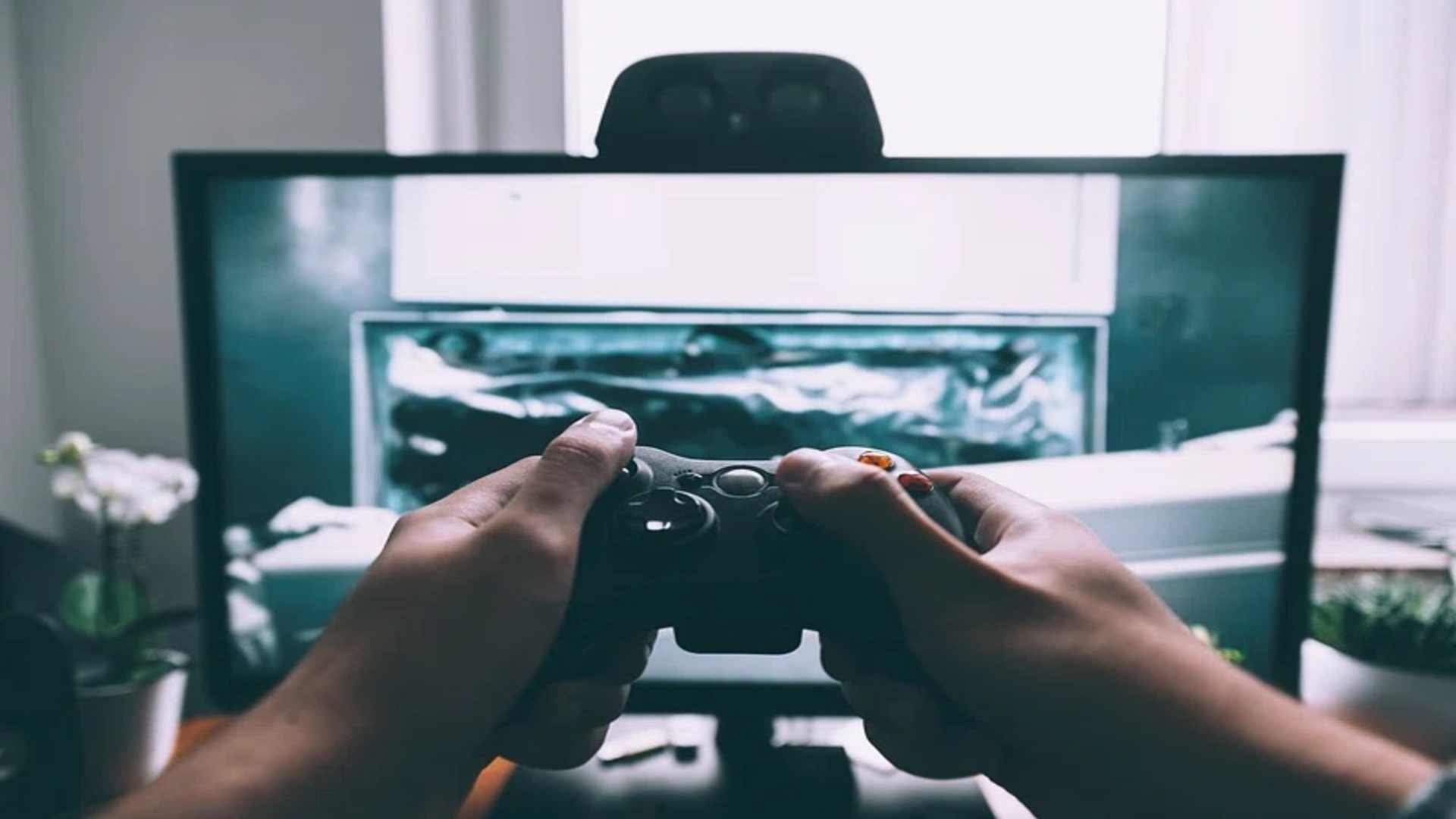
Connecting wireless accessories to your PlayStation 4 can significantly enhance your gaming experience by reducing cable clutter and granting freedom of movement. While the system seamlessly syncs with official controllers and dedicated headsets, pairing third-party Bluetooth accessories requires understanding the console's built-in connectivity settings. By following a few straightforward steps, players can quickly manage their paired devices and optimize their gaming audio and input setups.
Navigating to the PS4 Bluetooth Device Settings
To begin pairing any wireless device, power on your PS4 console and navigate to the main dashboard menu using a working controller. Select the Settings icon represented by a toolbox, then scroll down and choose the Devices option. Within this menu, select Bluetooth Devices to open the system scanning interface for nearby wireless signals.
Ensure the accessory you wish to connect is powered on and placed in active pairing mode. Most headsets and controllers enter this mode by holding down their dedicated power or Bluetooth button until an LED light begins flashing rapidly. Once visible on screen, select your device's name from the list to initiate the connection request.
Pairing Compatible Controllers and Keyboards
The PlayStation 4 natively supports standard Bluetooth input hardware such as wireless keyboards, mice, and official DualShock 4 controllers. When pairing a secondary controller, press and hold the Share and PS buttons simultaneously until the light bar flashes rapidly. The controller will appear in the Bluetooth menu, allowing you to select and pair it seamlessly.
Wireless keyboards and mice follow a similar pairing procedure through the Bluetooth menu. Once connected, these peripherals allow for faster text input in chat windows and supported games. If prompt authentication is requested during setup, consult the manufacturer manual for the standard passkey, which is typically four zeros.
Overcoming Audio Headset Compatibility Limits
Due to specific Bluetooth audio profile restrictions, the PS4 does not support most non-Sony wireless audio headsets directly out of the box. Users attempting to connect standard Bluetooth headphones may encounter an error message stating the device is unsupported. This limitation is primarily designed to prevent audio latency and preserve overall wireless bandwidth for controllers.
To bypass this restriction, gamers can utilize a USB Bluetooth adapter plugged directly into one of the console's front USB ports. These third-party dongles handle the audio transmission independently and allow unsupported headsets to receive game audio. Alternatively, connecting an auxiliary cable from your headset directly into the DualShock 4 controller provides a reliable wired workaround.
Troubleshooting Connection and Signal Issues
If your device fails to pair or experiences frequent signal drops, start by clearing out old paired devices from the system settings menu. Interference from nearby Wi-Fi routers, mobile phones, or other wireless electronics can also disrupt the Bluetooth signal. Moving these devices away from the console helps maintain a stable, low-latency connection.
In cases where a device refuses to connect despite following standard procedures, perform a soft reset on both the accessory and the console. Resetting the network configuration or re-registering the peripheral often resolves temporary software glitches. Keeping your PS4 system software updated ensures maximum compatibility with newer hardware models.